Step one of two
Installing BepInEx 5 for Liquidation RTS
BepInEx is the loader. It does not change anything about the game on its own — it sits alongside the executable, starts before Unity does, and gives plugins somewhere to load from. Without it, the three Ungodly DLLs are inert files.
This takes about three minutes. Do not skip the first launch in step 5; the plugins have nowhere to go until BepInEx has run once.
#Which build to download
There is one correct choice here and several wrong ones, so it is worth being explicit.
| Build | Use it? | Why |
|---|---|---|
BepInEx_win_x64_5.4.23.5.zip |
Yes | Liquidation is a 64-bit Windows game. This is the build this manual is written against. |
BepInEx_win_x86_… |
No | 32-bit. It will load and then silently do nothing, because the process architecture does not match. |
BepInEx_unix_… / macos_… |
No | Wrong platform. |
BepInEx 6.0.0-pre… |
No | BepInEx 6 cannot load BepInEx 5 plugins. All three Ungodly plugins are BepInEx 5 plugins. |
BepInEx_win_x64_5.4.23.5.zip
624 KB (639,118 bytes)The official release, straight from the BepInEx project on GitHub. Doorstop 4.5.0.
SHA-25682f9878551030f54657792c0740d9d51a09500eeae1fba21106b0c441e6732c4
#The install, step by step
-
Download the x64 zip
Use the button above, or go to the releases page and pick
BepInEx_win_x64_5.4.23.5.zipfrom the Assets list at the bottom of the newest BepInEx 5 release. It is about 624 KB. -
Unblock it before you extract
Windows marks files downloaded from the internet, and that mark is inherited by everything you extract from the archive. It will not stop BepInEx working, but it is one less thing to wonder about later. Right-click the zip, choose Properties, and if there is an Unblock checkbox at the bottom of the General tab, tick it and click OK.
-
Open your Liquidation folder
Steam library, right-click the game, Properties → Installed Files → Browse. You are in the right place when you can see
Liquidation.exe. -
Extract the contents of the zip into that folder
This is the step people get wrong, so read it twice. You want the contents of the zip, not the zip's own folder.
Open the zip and you will see four files and one folder at its top level. Select all five and drag them into the Liquidation folder. When you are finished,
winhttp.dllmust sit directly besideLiquidation.exe— not inside a subfolder calledBepInEx_win_x64_5.4.23.5.If Windows asks about merging or replacing, say yes.
-
Launch the game once, then quit
Start Liquidation from Steam as normal. Wait until you reach the main menu, then quit. You will not see anything different — BepInEx has no visible interface of its own — but in the background it has just created the folders the plugins need.
The first launch is slower than usual. BepInEx is caching information about the game's assemblies. Later launches are back to normal speed.
-
Confirm it worked
Go back to your Liquidation folder and open
BepInEx. If you now see folders calledcache,config,patchersandpluginsalongsidecore, plus a file calledLogOutput.log, BepInEx is installed and running. That is the whole test.If those folders are not there, jump to what to do when the folders do not appear below.
#Exactly what the zip contains
So you can tell at a glance whether an extraction went where you meant it to. Sizes are the uncompressed bytes; timestamps are the ones stored inside the archive.
Four files land beside the executable
| File | Size | What it is for |
|---|---|---|
.doorstop_version |
5 | Marks which Doorstop build is present. |
changelog.txt |
338 | Doorstop changelog. Harmless, keep it. |
doorstop_config.ini |
1,460 | Tells Doorstop to boot BepInEx. Leave the defaults alone. |
winhttp.dll |
26,112 | The loader. Windows loads this next to the exe, and it starts BepInEx. |
Eighteen more land in BepInEx\core
You never need to touch any of these. They are listed only so you can confirm the folder is complete.
| File | Size |
|---|---|
0Harmony.dll |
204,800 |
0Harmony.xml |
267,107 |
0Harmony20.dll |
112,640 |
BepInEx.dll |
128,512 |
BepInEx.Harmony.dll |
6,656 |
BepInEx.Harmony.xml |
4,056 |
BepInEx.Preloader.dll |
43,008 |
BepInEx.Preloader.xml |
7,964 |
BepInEx.xml |
89,835 |
HarmonyXInterop.dll |
23,552 |
Mono.Cecil.dll |
339,456 |
Mono.Cecil.Mdb.dll |
43,008 |
Mono.Cecil.Pdb.dll |
86,528 |
Mono.Cecil.Rocks.dll |
27,648 |
MonoMod.RuntimeDetour.dll |
105,984 |
MonoMod.RuntimeDetour.xml |
9,414 |
MonoMod.Utils.dll |
187,904 |
MonoMod.Utils.xml |
78,973 |
#What your folder looks like now
Before the first launch, the BepInEx folder holds only
core. After it, four more folders and a log file have appeared by
themselves.
- Liquidation.exethe game
- UnityPlayer.dll
- UnityCrashHandler64.exe
- Liquidation_Datathe game's own assets
- MonoBleedingEdgethe game's Mono runtime
- winhttp.dllthe loader — must be here, not in a subfolder
- doorstop_config.ini
- .doorstop_version
- changelog.txt
- BepInEx
- corecame from the zip
- cachecreated on first launch
- configcreated on first launch
- patcherscreated on first launch
- pluginscreated on first launch — the DLLs go in here
- LogOutput.logcreated on first launch

BepInEx folder plus .doorstop_version, changelog.txt, doorstop_config.ini and winhttp.dll sitting alongside the game's own files.
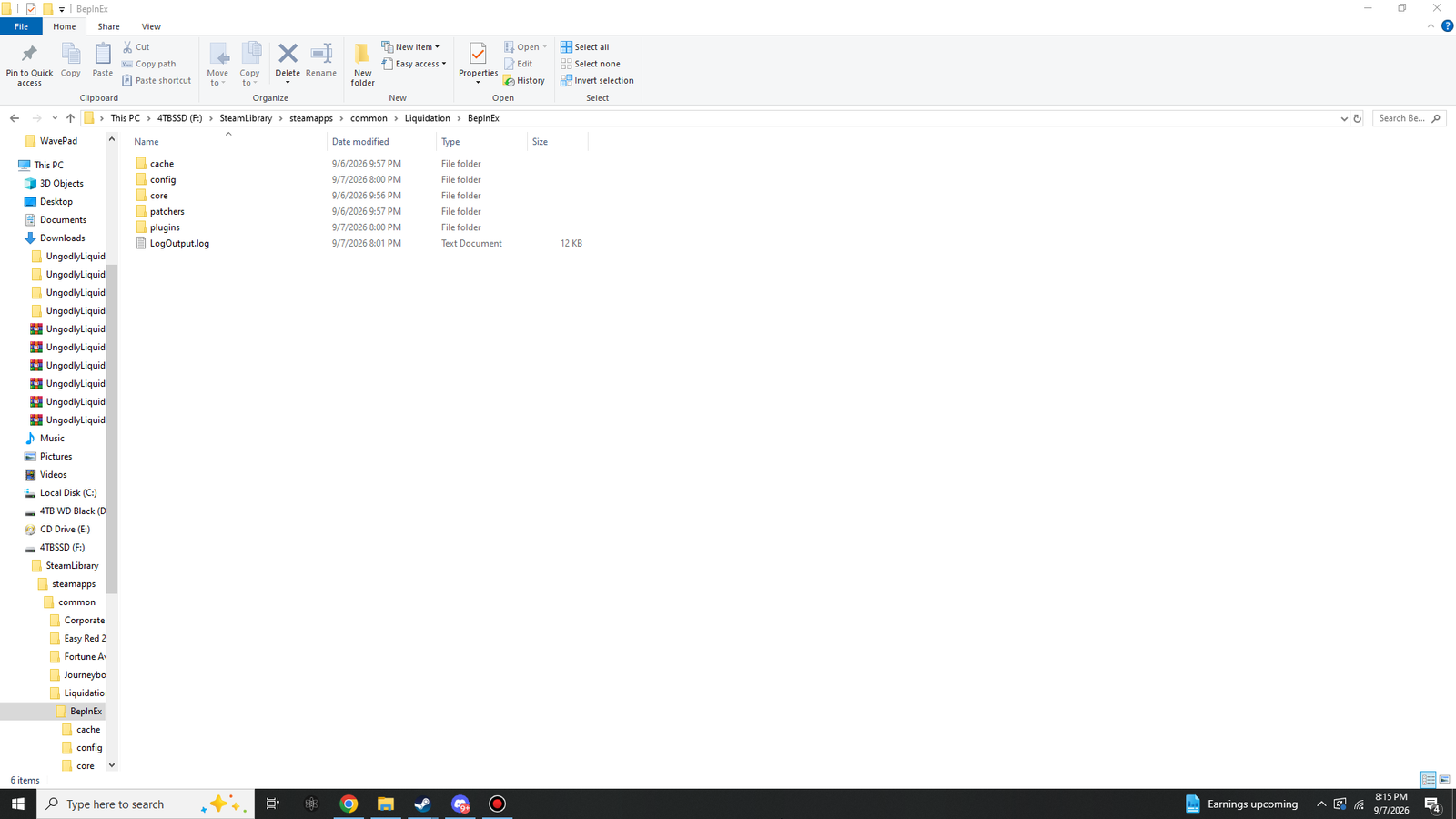
core ships with BepInEx. cache, config, patchers, plugins and LogOutput.log are created on the first run. If you do not see them, BepInEx has not started yet.
#When the folders do not appear
If BepInEx\plugins is missing after a launch, BepInEx did not start.
Work down this list; it is ordered by how often each cause turns out to be the real one.
The files went one level too deep
By far the most common cause. Check whether your Liquidation folder contains a folder named
after the zip. If it does, open it, move its five items up one level, and delete the empty folder.
winhttp.dll has to be in the same folder as
Liquidation.exe.
Antivirus removed winhttp.dll
A DLL appearing next to a game executable is exactly the shape of something worth flagging, and
some antivirus products quarantine it on sight without telling you. Check your quarantine or
protection history. If winhttp.dll is in there, restore it and add your
Liquidation folder as an exclusion.
You installed the x86 build
The x86 loader cannot inject into a 64-bit process. It fails quietly. Delete the four loose
files and the BepInEx folder, then extract the
win_x64 zip instead.
Steam launch options are interfering
If you have anything in the game's launch options, temporarily clear it and try again. A custom launcher or a wrapper can start the executable in a way that bypasses the loader.
Turn the console on and watch it start
If none of the above applies, get BepInEx to tell you directly. Open
BepInEx\config\BepInEx.cfg in a text editor, find the
[Logging.Console] section, and set:
[Logging.Console]

## Enables showing a console for log output.
# Setting type: Boolean
# Default value: false
Enabled = true
Launch the game. A black console window should appear before the game does, with BepInEx's startup lines in it. If that window never appears, the loader is not running at all and the cause is one of the four above. If it does appear, read what it says — it will name the problem.