Step two of two
Installing the three Ungodly plugins
Each archive contains two files: the plugin itself and its README. Only the .dll needs to go into the game. This page covers all three, plus what each one writes on its first run and how to tell it actually loaded.
BepInEx must already be installed and must have run at least once. Do that first if BepInEx\plugins does not exist yet.
#What is inside each archive
All three are the same shape. There is no installer, no folder structure to preserve, and nothing that overwrites a game file.
- UngodlyLiquidationAI_v1_0_8.rar
- UngodlyLiquidationAI.dll220 KB — this is the plugin
- README.mdreference only, does not need to go anywhere
- UngodlyLiquidationGoreGFX_v1_2_0.rar
- UngodlyLiquidationGoreGFX.dll284 KB — this is the plugin
- README.mdreference only, does not need to go anywhere
- UngodlyLiquidationLeveling_v1_0_0.rar
- UngodlyLiquidationLeveling.dll214 KB — this is the plugin
- README.mdreference only, does not need to go anywhere
#Installing them
-
Extract each archive somewhere temporary
Your Downloads folder is fine. You only need the
.dllout of each one. Keep the READMEs if you like — they go into far more detail on individual settings than this page does. -
Copy the DLLs into BepInEx\plugins
Open your Liquidation folder, then
BepInEx, thenplugins. Drop all three DLLs straight in.You can install any one of them on its own. They do not depend on each other.
-
Launch the game
Start it from Steam as normal and wait for the main menu. Each plugin writes its own config file during this launch.
-
Check that all three loaded
Quit, then open
BepInEx\config. You should now have four files:BepInEx.cfgplus onecom.stixsworldhd.*.cfgfor each plugin you installed. A missing config file means that plugin did not load. -
Open each settings window
Back in the game, press F6, F7 and F8 in turn. Every setting shows its own minimum and maximum and explains in plain English what changing it does. If a key does nothing, try its alternate — Insert for the first two, Home for Leveling.
#Where the files end up
This is what a complete install looks like. The three DLLs sit flat in
plugins, which is how the screenshots in this manual were taken and is
the layout it documents throughout.
- Liquidation.exe
- winhttp.dllBepInEx loader
- BepInEx
- coreBepInEx itself, untouched
- plugins
- UngodlyLiquidationAI.dll220 KB
- UngodlyLiquidationGoreGFX.dll284 KB
- UngodlyLiquidationLeveling.dll214 KB
- config
- BepInEx.cfgwritten by BepInEx
- com.stixsworldhd.ungodlyliquidationai.cfgwritten by the plugin
- com.stixsworldhd.ungodlyliquidationgoregfx.cfgwritten by the plugin
- com.stixsworldhd.ungodlyliquidationleveling.cfgwritten by the plugin
- cache
- patchersstays empty — none of these use patchers
- LogOutput.logthe log to send if you report a problem
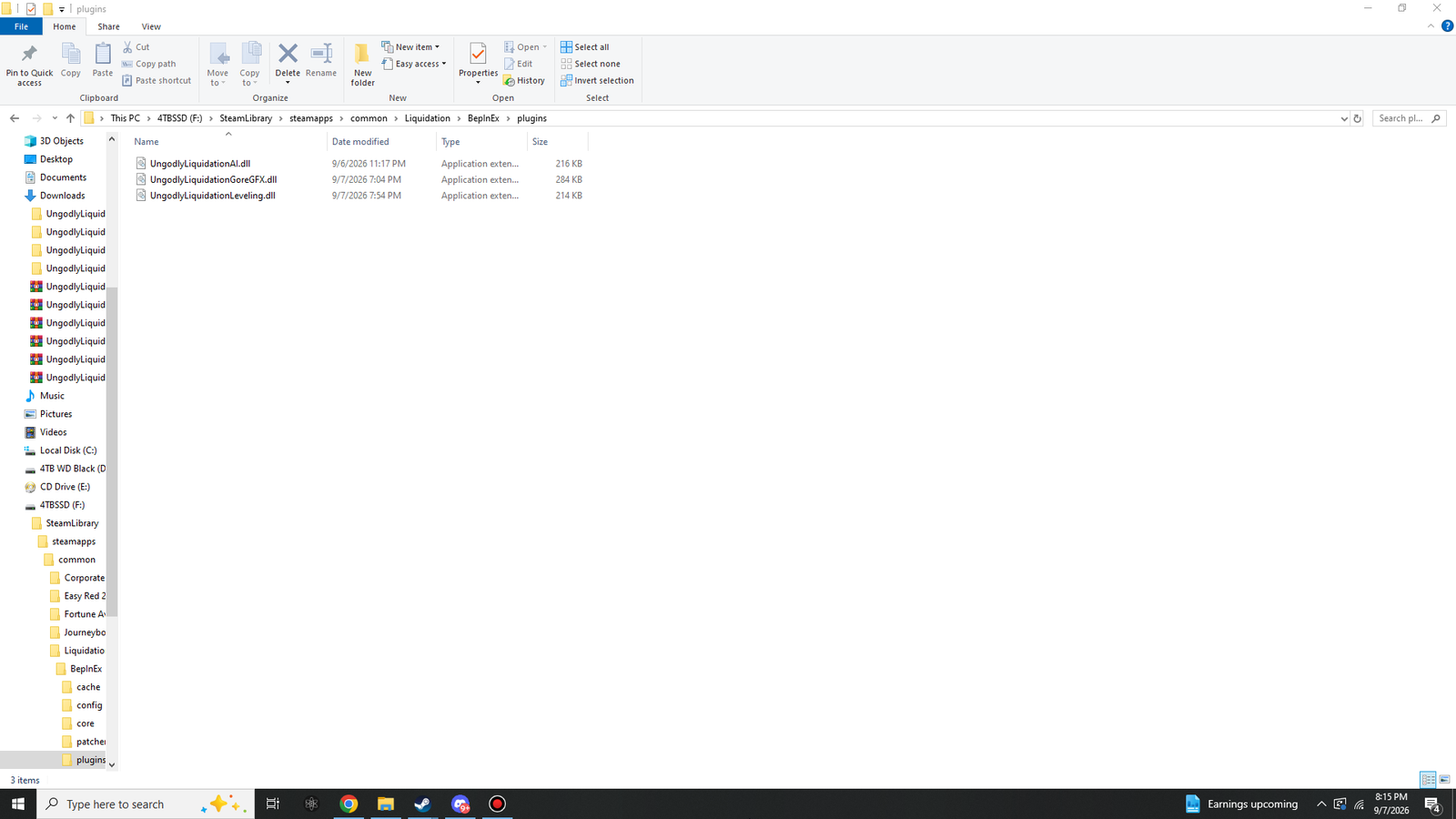
BepInEx\plugins. This shot was taken with AI v1.0.7 installed, so its DLL reads 216 KB here; v1.0.8 is 220 KB. The other two are unchanged at 284 KB and 214 KB.
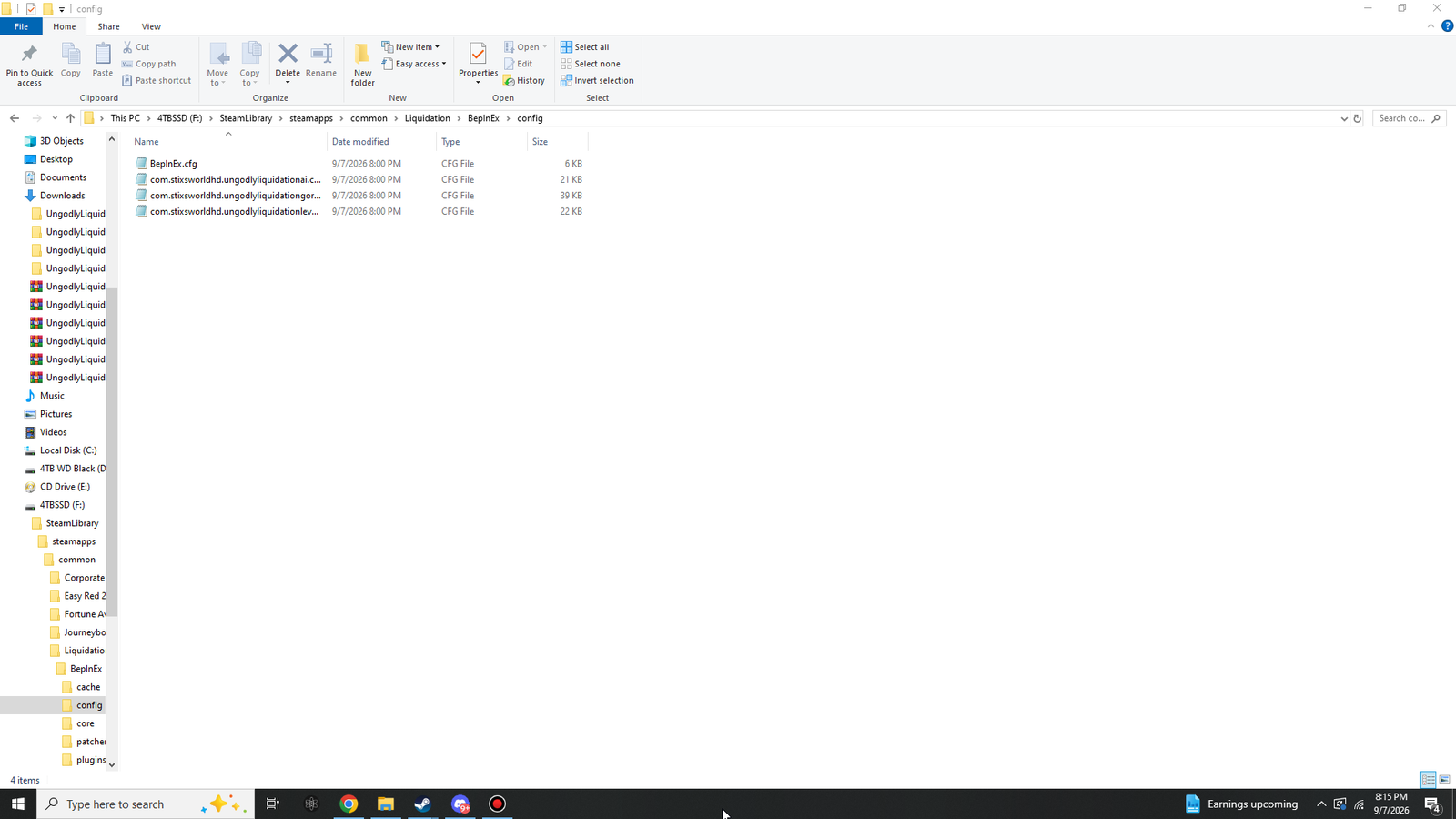
#Setting each one up
| Plugin | Opens with | Also opens with | Config file |
|---|---|---|---|
| Ungodly Liquidation AI v1.0.8 | F6 | Insert | com.stixsworldhd.ungodlyliquidationai.cfg |
| Ungodly Liquidation Gore & Graphics v1.2.0 | F7 | Insert | com.stixsworldhd.ungodlyliquidationgoregfx.cfg |
| Ungodly Liquidation Leveling v1.0.0 | F8 | Home | com.stixsworldhd.ungodlyliquidationleveling.cfg |
The windows all behave the same way. Opening one releases your mouse cursor and stops the game receiving clicks, hotkeys and screen-edge camera scrolling. Closing it hands all of that back and restores the cursor to exactly the state the game had it in, so unit selection and edge scrolling resume immediately. Esc also closes.
Ungodly Liquidation AI
The defaults are playable as they are. If you want to push it in a direction, these are the levers that matter most:
| You want | Change |
|---|---|
| Aggressive, bloody fights | Aggression 80, SelfPreservation 30, RetreatHealthPercent 10 |
| Armies that survive and trade well | SelfPreservation 75, RetreatHealthPercent 45, ReturnHealthPercent 85 |
| A heavy micro feel | Kiting 85, Flanking 75, ReplanIntervalTicks 4 |
| Disciplined block advances | SquadCohesion 85, Flanking 20, PositionCommitTicks 60 |
| Units to commit harder to a route | RepathIntervalTicks 30 or higher |
| Units to react faster to new threats | RepathIntervalTicks 6, DangerAvoidance 90 |
Every one of those is simulation-critical, so everyone in a multiplayer match needs the same values. The Diagnostics tab is worth a look on your first match — Cached routes and Cache hit rate climbing means the route cache is doing its job, and Searches run climbing steadily while units walk in a straight line means routes are being recalculated when they should not be.
Ungodly Liquidation Gore & Graphics
Nine tabs: General, Gore, Blood, Gibs & Spray, Graphics, Post FX, Visibility, Coroutines, Diagnostics. Two things are worth knowing before you start turning things up.
Render scale is the single biggest performance dial in the whole plugin, in both directions. Lower it if you need frames; raise it if you have headroom and want a sharper image. Nothing else in the Graphics tab comes close to it for impact.
Unlimited draw distance costs GPU time, most of all when you are zoomed right out, because
the game has to draw more of the world at once. If you turn it on and your frame rate drops when
zoomed out, use the plain DrawDistance slider with a smaller number instead. And if
turning it on appears to do nothing, the extra terrain is being hidden behind atmospheric haze —
switch on DisableDistanceFog in the same tab.
For more carnage: raise MaxCorpses and MaxSplats, raise
DeathPoolSize and Spread, raise GibForceMin and
GibForceMax. For fewer frames lost to it: set CorpseShadowDistance to 0
first, then lower ShadowDistance, then lower MaxCorpses.
Ungodly Liquidation Leveling
56 settings across 11 sections, 32 of them with an explicit minimum and maximum. The one that changes the feel of a campaign most is the curve, in section 02. These are the measured costs at the default cap of 10, base 200, multiplier 1100:
| Curve | L1→2 | L5→6 | L9→10 | Total to cap | |
|---|---|---|---|---|---|
| Stock | 200 | 1,200 | 2,000 | 9,000 | Reproduces the unmodded curve exactly. |
| Linear | 200 | 1,300 | 2,180 | 9,720 | Even, predictable climb. |
| Quadratic | 200 | 750 | 1,982 | 6,288 | The default. Fast early, steeper late. |
| Cubic | 200 | 1,116 | 5,546 | 11,301 | Punishing at the top end. |
| Exponential | 200 | 321 | 468 | 2,708 | Levels come very quickly. |
| Geometric | 200 | 931 | 1,825 | 7,285 | Close to stock, slightly cheaper. |
| Root | 209 | 513 | 663 | 4,045 | Front-loaded cost, cheap later. |
| Logarithmic | 222 | 260 | 274 | 2,268 | Nearly flat. Almost everything levels. |
| Fibonacci | 200 | 1,300 | 7,680 | 13,680 | The longest grind of the ten. |
| SineWave | 200 | 640 | 1,543 | 5,687 | Rises in waves rather than smoothly. |
| Custom | 200 | 1,575 | 3,575 | 12,300 | Your own polynomial, set in section 02. |
Section 07 holds three switches, one per bug in the game's own levelling code that the plugin repairs. They are on by default. Turn them off if you want exactly vanilla behaviour.
| # | Bug, and where it lives in the game | What you notice |
|---|---|---|
| 1 | The experience cap is one level too low
Experienced.AddExperiencePoints |
Level 10 cannot be reached, and progress toward it is discarded rather than capped. |
| 2 | Landing exactly on a threshold does not promote you
CheckOnLevelUp |
The promotion test is strictly greater than, so hitting the requirement precisely falls one point short. |
| 3 | PromotionService leaks observers into an empty handler
PromotionService |
Subscriptions accumulate and are never removed, and the handler they feed does nothing. |
Each one is set out in full on its own page — the line of code that causes it, what it does to a match, and what the plugin does instead.
#What v1.0.8 fixes: units attacking buildings they have already captured
A bug in the game itself, traced through its own code. The plugin repairs it using the game's own hostility test rather than a rule of its own.
Capture a building in the unmodded game and the units that were shooting it carry on shooting it. Nothing tells them to stop. Here is the whole chain, and why none of the four places you would expect to catch it does.
-
The capture completes
Capturing a building runs
CaptureAble.Progress(), which callsLoyal.SetPlayer().CaptureAble.Progress() -> Loyal.SetPlayer() -
The building tells only itself
Those two messages go to the captured building's own GameObject. Nothing at all is sent to the units currently shooting it.
Loyal.SetPlayer() -> RemovePlayer (to the building's own GameObject) -> RegisterPlayer (to the building's own GameObject) -
The right routine exists, but nothing calls it
The
Attackercomponent has a routine for exactly this situation. Neither of its two callers fires when the target changes owner.Attacker.ResetTargetAlly() drops a target that is no longer hostile called only from: Attacker.OnPlayerRemoved() when the ATTACKER changes owner Attacker.BeforeTaskActivate() when a new task starts -
Per-update validation does not catch it either
The validation that runs every update ends at a loyalty check which returns true unconditionally for any attack method configured with
TargetLoyalty.All.AttackMethod.ValidateNonImmediateAttack -> TargetValidator.ValidateTarget -> ValidateLoyalty returns true unconditionally for TargetLoyalty.All
What the plugin does
- Watch
Loyal.SetPlayer— the single point every ownership change in the game passes through, whether that is a capture, a mind control, or a scripted transfer. - On the next simulation tick, ask every attacker to re-run the game's own
ResetTargetAlly()check. The decision to drop a target is made by the game's hostility test, not by anything the plugin invents — a unit fighting a genuine enemy is left completely alone. - Rebuild the routing danger field immediately rather than waiting for its normal cadence, because a captured structure instantly threatens a different alliance.
- Drop every unit's cached squad focus pick, so nobody keeps orienting itself against a structure that is now on its own side.
Why it cannot desync a match
- The sweep is deferred to a fixed point inside the simulation tick rather than run inline.
Loyal.SetPlayercan be called from setup code as well as fromCaptureAbleduring simulation, and deferring guarantees the sweep lands at one identical moment on every peer. EntityMapenumerates aSortedDictionarykeyed by simulation id, so the sweep order is identical everywhere.- The new setting is SIM-CRITICAL and is folded into the determinism hash, so a mismatch between players is caught by the checksum guard like any other.
The setting and how to watch it work
| Setting | ReleaseCapturedTargets, in section
03 - AI Behaviour (GOAP). Default
true. Set it to false for stock
behaviour, including the stuck-on-a-captured-building problem. |
| Diagnostics row | Ownership changes handled — how many ownership transfers were processed, and how many attackers had a now-friendly target released. Capture a building and watch it tick up. |
| Multiplayer | SIM-CRITICAL. Every player needs the same value. Why that matters. |
What it deliberately does not do
- It is reactive, not predictive. A unit will fire whatever shot is already in flight when the capture completes; it stops on the next tick.
- It still does not override the game's target selection. It releases targets that have become friendly, but it does not choose which enemy a unit shoots — hijacking selection would break healing, repairing and abilities that require a specific target.
#Running all three at once
They were built as a set, and everything that could have collided was separated deliberately rather than left to chance.
| AI | Gore & Graphics | Leveling | |
|---|---|---|---|
| Menu key | F6 / Insert | F7 / Insert | F8 / Home |
| Simulation service weight | 200 | — | 210 |
| Window id | 0x4C495141 | — | 0x4C494C56 |
The coroutine hook is negotiated at startup
Both Gore & Graphics and Leveling can move the game's coroutines onto More Effective Coroutines. If both did it at once, every adopted coroutine would run twice — timers at double rate, pooled objects released twice, visual effects behaving strangely.
So they arbitrate. On startup, Leveling checks Harmony for an existing patch owner on
MonoBehaviour.StartCoroutine and asks BepInEx's chainloader whether the Gore
& Graphics plugin id is loaded. If either says yes, it stands down and leaves the scheduler
alone. Running on its own, it installs the hook itself. Its Coroutines tab always shows which
plugin currently owns the scheduler.
MEC Pro is compiled into each plugin as source, so MEC.Timing inside Gore &
Graphics and MEC.Timing inside Leveling are different types with independent instances
and host objects. They cannot disturb each other even in principle.
#Updating and removing
Updating to a newer version
Delete the old DLL and the old .cfg before copying the new DLL in. Leaving a
stale config behind is the cause of most "I updated and it behaves oddly" reports: settings that no
longer exist stay in the file, and new settings never get their defaults written.
That applies with particular force to the jump from AI v1.0.7 to v1.0.8, because v1.0.8 adds a
setting. A config written by v1.0.7 has no ReleaseCapturedTargets entry in
it at all.
BepInEx\plugins\UngodlyLiquidationAI.dll          <- delete, then copy the new one in
BepInEx\config\com.stixsworldhd.ungodlyliquidationai.cfg   <- delete, it will be rewritten
Removing one plugin
Delete its DLL from BepInEx\plugins. That is all. You can leave the
config file behind if you might reinstall later — it will be picked up again — or delete it for a
clean slate.
Removing everything
Delete the BepInEx folder plus the four loose files
(winhttp.dll, doorstop_config.ini,
.doorstop_version, changelog.txt). The game is
then byte-for-byte what Steam installed. There is nothing to verify or repair, because none of the
game's own files were ever modified.
Ungodly Liquidation AI release history
Useful for working out whether a symptom you are reading about elsewhere still applies to the build you have.
| Version | What changed |
|---|---|
| 1.0.8 current | Units kept attacking buildings after they were captured. A bug in the game itself; traced and repaired. |
| 1.0.7 | Units ran back and forth around obstacles. Four defects: the route cursor was reset when a route was requested rather than delivered; routes were recalculated on a blind timer; the cursor never advanced past an overshot waypoint; and slow units were falsely flagged as stuck because progress was measured in whole world units. |
| 1.0.6 | The multiplayer checksum guard was silently inert, and the route cache plus sector graph were wiped every tick. |
| 1.0.5 | Dead diagnostics feed, a reset that discarded the starting army, a registration gate that skipped early units, and a tick dependent on a droppable registration. |
| 1.0.4 | The window rendered but nothing was clickable: the draw path was limited to one pass per frame, and IMGUI calls OnGUI once per event. |
| 1.0.3 | Mod objects were destroyed on the first scene load before Unity delivered a single Update. Fixed with static hooks. |
| 1.0.2 | Menu drivers, MenuKeyAlternate, an early return in Awake, and BepInEx's fragile KeyboardShortcut.IsDown() replaced. |
Turning a plugin off without deleting it
Every one of them has a MasterEnabled switch in section 01 of its config, and in the
General tab of its window. Set it to false and the game renders and behaves exactly as
it does with that plugin uninstalled. It is the fastest way to work out whether a plugin is
responsible for something you are seeing.